Your Phone Is Running Your Day. Here's How to Take It Back: 5 Notification Fixes That Actually Stick
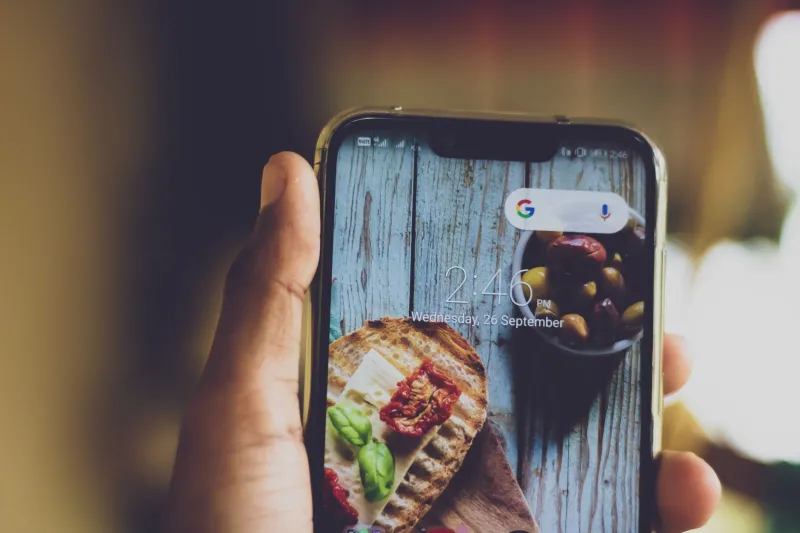
Here's a number worth sitting with: the average American checks their phone 96 times a day. That's roughly once every 10 minutes during waking hours. And for most people, a significant chunk of those checks aren't intentional — they're triggered by a ping, a buzz, or just the Pavlovian habit of reaching for the device because something interrupted them 30 seconds ago.
The standard advice is to turn on Do Not Disturb. It's fine advice as far as it goes, but it doesn't go very far. DND is a blunt instrument. It silences everything, which means you either miss something genuinely important or you override it constantly, which defeats the point. What actually works is building a notification architecture — a deliberate system that filters signal from noise before it ever hits your attention.
These five approaches go well beyond the basics. They're ranked roughly from foundational to advanced, so if you're starting from scratch, work through them in order.
1. iOS Focus Modes / Android Focus Mode — The Built-In Power You're Not Using
Both major mobile platforms have evolved their focus features significantly in the last two years, and most people are still treating them like slightly smarter Do Not Disturb toggles. They're not. Used properly, they're full notification routing systems.
On iPhone (iOS 15+): Focus Modes let you create multiple profiles — Work, Personal, Sleep, Fitness — each with its own allowed contacts, allowed apps, and home screen layout. You can set them to activate automatically based on time, location, or even which app you open. Your Work focus can allow calls from your manager but silence every social app. Your Evening focus can let family texts through but mute your work Slack entirely.
On Android (Digital Wellbeing): The Focus Mode panel lets you pause specific apps on a schedule. When an app is paused, its notifications don't come through and you can't open it without manually unpausing — which adds just enough friction to interrupt autopilot behavior.
The key move most people miss: Set these to activate automatically. A focus mode you have to remember to turn on will get skipped on your busiest days — which are exactly the days you need it most.
2. Notification Scheduling With Batching — Stop Letting Apps Set Your Agenda
One of the most effective notification strategies isn't about blocking pings — it's about delaying them. Instead of receiving notifications the instant they're sent, you batch them into two or three scheduled check-in windows per day.
Apple introduced Scheduled Summary in iOS 15, which bundles lower-priority notifications and delivers them at times you choose — say, 9 AM, 1 PM, and 6 PM. Non-urgent apps like news, social media, and newsletters get queued instead of interrupting you in real time.
On Android, apps like Daywise take this further, letting you assign each app to a specific delivery window and offering analytics on which apps are interrupting you most. The behavioral insight alone is worth installing it — most people are genuinely surprised to see how often a single app is responsible for half their daily interruptions.
Best for: Knowledge workers, writers, or anyone doing deep-focus work who can't afford to be reactive all day.
3. App-Level Notification Audits — The 15-Minute Fix With Lasting Impact
This one isn't an app. It's a process — and it's more powerful than any tool on this list if you actually do it.
Go into your phone's notification settings (Settings > Notifications on iPhone; Settings > Apps on Android) and go through every single app. For each one, ask one question: Does this app have a legitimate reason to interrupt me in real time? Most of them don't. Email, social media, news apps, shopping apps, games — none of these require immediate attention. Turn off their notifications entirely, or at minimum disable banners and sounds so they only appear as badge counts.
Reserve real-time interruption privileges for: phone calls from specific contacts, direct messages from people you've designated as important, and calendar alerts. That's probably it.
The reason this works better than most people expect is psychological: every notification you've allowed creates a low-level anticipation loop in your brain. Reducing the number of active notification sources reduces baseline anxiety — not just distraction.
4. Reclaim or Freedom — When Willpower Isn't the Problem, Architecture Is
Sometimes the issue isn't notifications themselves — it's that you keep opening apps out of habit even when they're silent. This is where app blockers earn their keep.
Reclaim.ai is primarily a calendar and task management tool, but its focus session features block distracting apps during scheduled work blocks and integrate with your calendar to protect deep work time automatically. It's more sophisticated than a simple blocker because it accounts for your actual schedule rather than applying a blanket rule.
Freedom works across iOS, Android, Mac, and Windows simultaneously — which matters if you're the type who picks up your phone when your computer blocks something. You can schedule recurring block sessions, lock yourself out of specific sites and apps, and even enable a "locked mode" that prevents you from overriding a session once it starts. That last feature is the one that separates serious users from casual ones.
Price: Freedom runs about $3.33/month on an annual plan. Reclaim has a free tier with paid upgrades.
5. ScreenZen — The Friction App That Works With Your Brain, Not Against It
ScreenZen takes a different approach than outright blocking. Instead of preventing you from opening an app, it inserts a short delay and a prompt — something like "Are you sure you want to open Instagram?" — before letting you in.
This sounds minor. In practice, it's surprisingly effective. A lot of app-opening behavior is genuinely automatic — you unlock your phone, your thumb goes to a social app, and you're scrolling before you've made a conscious choice. ScreenZen interrupts that loop at the moment it matters most, giving your prefrontal cortex a chance to weigh in before your habit brain takes over.
You can set the delay length, customize the prompt message, and track how often you override the pause. That data is useful: if you're bypassing the friction 40 times a day on one particular app, that app is telling you something worth paying attention to.
Available on: iOS and Android, free with optional premium features.
Building the System That Works for You
The goal here isn't to make your phone useless — it's to make it responsive to your priorities instead of everyone else's. Start with the notification audit and Focus Mode setup, since those have zero ongoing cost and immediate impact. Add a batching tool like Daywise or Scheduled Summary to collapse your reactive check-in windows. If you still find yourself getting pulled in, layer in Freedom or ScreenZen for the apps that are hardest to resist.
Within two weeks of running a real system, most people report feeling less scattered — not because they're doing less, but because they're choosing what gets their attention instead of having it chosen for them. That's the whole game.